02. Installing .NET SDK and Visual Studio
Level: Beginner
- What software you need to write C# code
- Install .NET SDK
- Install Visual Studio Community
- Create your first C# console project
- Run your first School Management System program
- Understand
Program.csand.csproj - Troubleshoot common setup problems
Before writing C# code, you need two things:
- .NET SDK -- the engine and tools that compile/run C# code
- Visual Studio Community -- the editor where you write and run code
Both are free for learning.
What You're Installing
| Software | What It Does | Use in This Course |
|---|---|---|
| .NET SDK | Compiles and runs C# code | Required |
| Visual Studio Community | Full IDE for writing C# code | Recommended for beginners |
| Console App template | Simple project type | Used for first C# practice |
The Problem: Why Do We Need Setup?
C# code is not like a normal text note. The computer cannot run it directly.
You write C# code
    v
.NET SDK checks and compiles it
    v
.NET runtime runs it
    v
Output appears on screen
Visual Studio helps you write the code easily. .NET SDK runs the code.
System Requirements
| Requirement | Recommended |
|---|---|
| OS | Windows 10/11, Mac, or Linux |
| RAM | 8 GB minimum, 16 GB better |
| Disk space | 5 GB or more |
| Internet | Required during installation |
For beginners on Windows, use Visual Studio Community.
For Mac/Linux, use .NET SDK + Visual Studio Code.
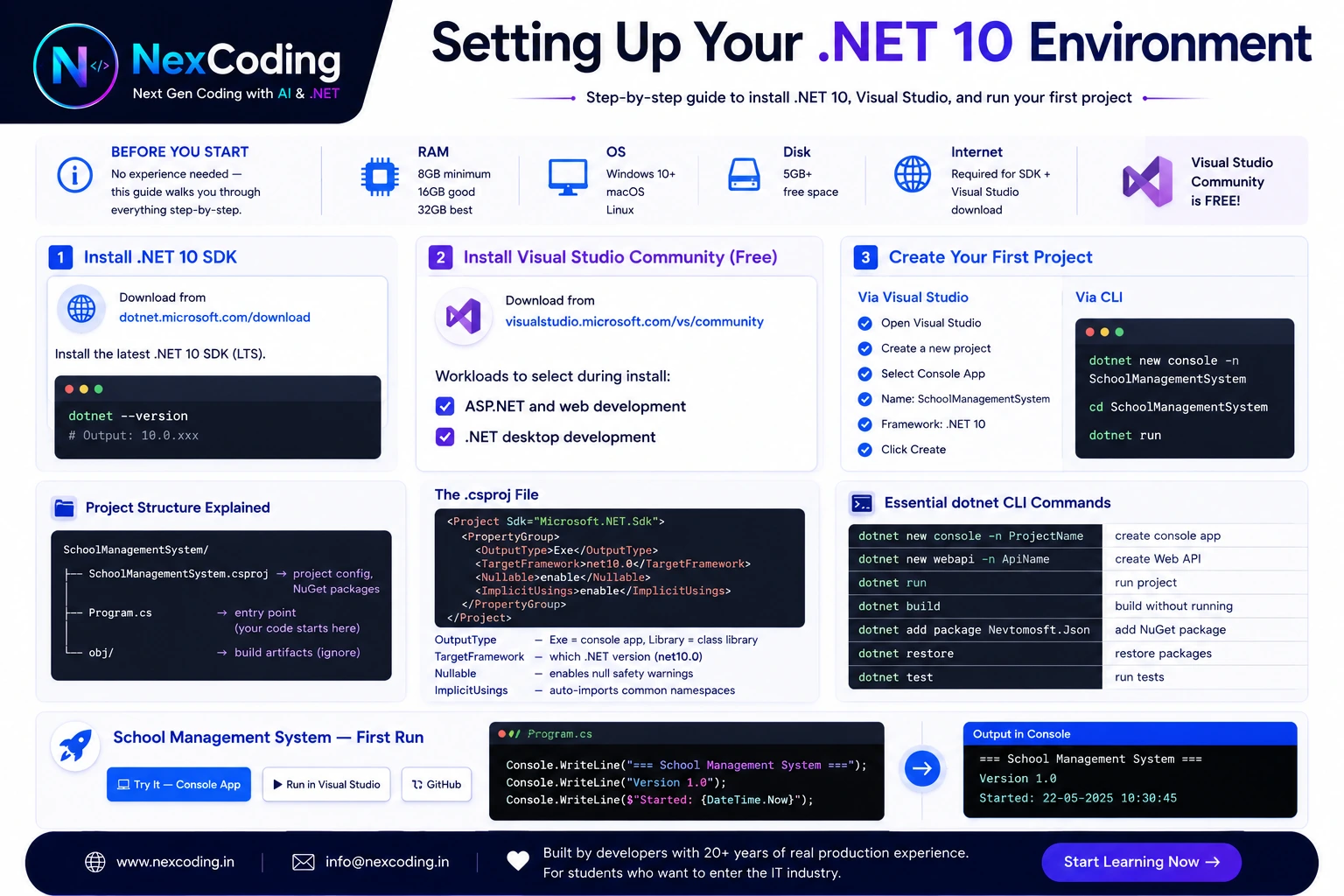
Step 1: Install .NET SDK
- Go to: https://dotnet.microsoft.com/download
- Download the latest .NET SDK.
- Run the installer.
- Finish installation using default options.
Important:
- Install SDK, not only runtime.
- SDK is needed to create, build, and run projects.
- Runtime alone is only for running already-built apps.
Step 2: Verify .NET Installation
Open Command Prompt or Terminal and run:
dotnet --version
Expected output:
10.0.xxx
Your exact version may be different. That is okay if the command prints a version number.
Also run:
dotnet --info
This shows installed SDKs and runtimes.
If both commands work, .NET SDK is installed correctly.
Step 3: Install Visual Studio Community
- Go to: https://visualstudio.microsoft.com/vs/community/
- Download Visual Studio Community.
- Run the installer.
- Select these workloads:
[OK] .NET desktop development
[OK] ASP.NET and web development
Then click Install.
Why these workloads?
| Workload | Why Needed |
|---|---|
| .NET desktop development | Console apps and basic C# practice |
| ASP.NET and web development | Later Web API and backend development |
Step 4: Create Your First C# Project
In Visual Studio:
- Open Visual Studio.
- Click Create a new project.
- Search for Console App.
- Choose Console App using C#.
- Project name:
SchoolManagementSystem - Location: choose your learning folder.
- Framework: choose the installed .NET version.
- Click Create.
You now have your first C# project.
Step 5: Run Your First Program
Open Program.cs and replace the content with this:
Press F5 or click Run.
Expected output:
=== School Management System ===
C# setup is working.
Next, we will learn variables.
If you see this output, your setup is correct.
Alternative: Create Project Using Command Line
You can also create the same project using terminal:
dotnet new console -n SchoolManagementSystem
cd SchoolManagementSystem
dotnet run
What each command does:
| Command | Meaning |
|---|---|
dotnet new console -n SchoolManagementSystem | Create a new console project |
cd SchoolManagementSystem | Go inside the project folder |
dotnet run | Build and run the project |
Project Structure
After creating the project, you will see:
SchoolManagementSystem/
|-- SchoolManagementSystem.csproj
|-- Program.cs
|-- bin/
|-- obj/
| File/Folder | Meaning |
|---|---|
Program.cs | Your C# code starts here |
.csproj file | Project settings |
bin | Build output |
obj | Temporary build files |
For beginners:
Write code in Program.cs.
Do not edit bin or obj.
Do not edit .csproj unless instructed.
What is Program.cs?
Program.cs is the first file you edit in a console app.
Simple example:
Console.WriteLine("Hello C#");
This line prints text on the screen.
In upcoming articles, we will add:
- Variables
- Conditions
- Loops
- Methods
- Classes
What is .csproj?
The .csproj file stores project settings.
Example:
<Project Sdk="Microsoft.NET.Sdk">
  <PropertyGroup>
    <OutputType>Exe</OutputType>
    <TargetFramework>net10.0</TargetFramework>
    <Nullable>enable</Nullable>
    <ImplicitUsings>enable</ImplicitUsings>
  </PropertyGroup>
</Project>
| Setting | Meaning |
|---|---|
OutputType | Exe means console application |
TargetFramework | .NET version used by project |
Nullable | Helps catch null-related mistakes |
ImplicitUsings | Adds common using statements automatically |
Do not worry if XML looks new. Visual Studio manages this file for you.
Essential Commands
These are useful later:
dotnet --version
dotnet new console -n ProjectName
dotnet run
dotnet build
dotnet clean
dotnet add package PackageName
| Command | Use |
|---|---|
dotnet --version | Check installed SDK version |
dotnet new console | Create console app |
dotnet run | Build and run |
dotnet build | Build only |
dotnet clean | Clean build files |
dotnet add package | Add NuGet package |
Troubleshooting
| Problem | Solution |
|---|---|
dotnet is not recognized | Restart terminal or reinstall .NET SDK |
| Console App template missing | Install .NET desktop development workload |
| Project will not run | Check if Program.cs has syntax errors |
| Wrong .NET version selected | Choose installed framework in project settings |
| Visual Studio is slow | Close extra apps or restart computer |
When You'll Use This in SMS
Setup is foundation. You'll repeat these steps:
First project: SchoolManagementSystem (this course)
Later projects:
- ASP.NET Core API (backend)
- React frontend
- Database migrations
- Cloud deployment
Every time: You'll use:
- Visual Studio (write code)
- .NET SDK (build + run)
- dotnet CLI commands
- Program.cs (starter file)
Get setup right once, and you will not struggle with tools again.
Common Setup Mistakes (3 Critical)
Mistake 1: Installing runtime instead of SDK
Wrong: Install only .NET Runtime.
Result: You can run apps, but cannot create/build projects.
Fix: Install .NET SDK from https://dotnet.microsoft.com/download.
Mistake 2: Skipping workloads in Visual Studio
Wrong: Install Visual Studio without .NET desktop development.
Result: Console App template missing.
Fix: Open Visual Studio Installer and add required workloads.
Mistake 3: Editing .csproj instead of Program.cs
Wrong: Write C# code inside the project file.
Result: Project breaks - .csproj is configuration, not code.
Fix: Write code inside Program.cs.
Setup for School Management System
Your setup is now ready.
Article 03 -> Store student data using variables
Article 04 -> Calculate marks using operators
Article 05 -> Make decisions using if/else
Article 06 -> Repeat tasks using loops
Article 07 -> Reuse code using methods
Article 08 -> Organize data using classes
Best Practices
- Use one folder for all course projects.
- Name projects clearly, like
SchoolManagementSystem. - Run your code after small changes.
- Read compiler errors carefully.
- Do not delete project files randomly.
- Use Visual Studio for learning, CLI for practice.
- Keep .NET SDK and Visual Studio updated.
Verify Your Setup
Run these checks before moving to next article:
-
dotnet --versionshows a version number -
dotnet new console -n TestAppcreates a project folder - Project runs with F5 or
dotnet run - Program.cs exists in project
- Console output appears on screen
All checked? Setup is complete. Ready for Article 03.
Step-by-step setup walkthrough coming soon. Subscribe to NexCoding YouTube for updates.
Practice Task
Create a new console project named:
CSharpPractice01
Print this output:
My C# setup is ready.
I can create and run console apps.
I am ready for variables.
Try it using either Visual Studio or command line.
You need:
- .NET SDK to build and run C# code
- Visual Studio or another editor to write code
For beginners, Visual Studio Community is recommended because it includes project templates, debugger, IntelliSense, and build tools.
.NET SDK is for developers. It can create, build, and run projects.
.NET Runtime is only for running already-built applications.
For learning C#, install the SDK.
Program.cs is the main code file in a console application.
For beginner console apps, your code starts there.
Example:
Console.WriteLine("Hello");
.csproj is the project configuration file.
It stores:
- .NET version
- project type
- package references
- build settings
Beginners usually do not edit it manually.
dotnet build checks and compiles the project.
dotnet run builds and runs the project.
For learning, dotnet run is commonly used because you immediately see output.
Run these checks:
dotnet --version
dotnet new console -n TestApp
cd TestApp
dotnet run
If the project runs and prints output, your setup is correct.
Use ChatGPT, Claude, or Copilot to go deeper on .NET SDK setup and C# project structure. Try these prompts:
"Explain .NET SDK and Visual Studio setup like I am a beginner""What is the difference between SDK, runtime, Visual Studio, and Program.cs?""Give me a checklist to verify my C# setup""Quiz me with 5 questions about C# setup"
💡 Tip: After reading this article, paste your own code into AI and ask "What could go wrong here and why?" — fastest way to find edge cases and deepen understanding.